One-Page-Resume (html)

One Page Resume(html)RESUME<!DOCTYPE html>
<html>
<head>
<title> RESUME </title>
</head>
<style>
p{border:5px solid peachpuff}
</style><p>
<body style=”background-color:ivory;”>
<center>
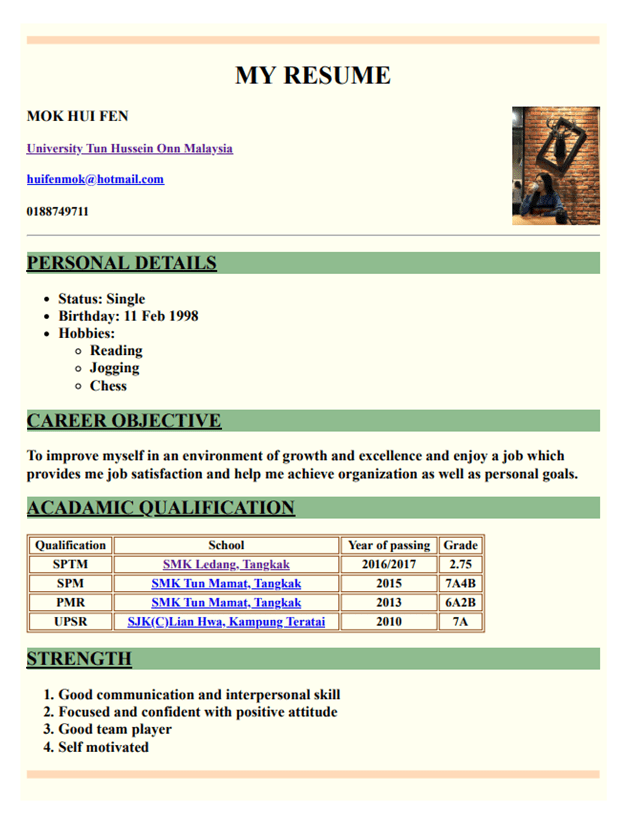
<h1><b>MY RESUME</b></h1>
</center>
<img src=”IMG_8197.jpg” width=110 height=148 align=right>
<h3>MOK HUI FEN</h3>
<h4><a href=”https://www.uthm.edu.my/en/”target=”_blank”>University Tun Hussein Onn Malaysia</a></h4>
<h4><a href=”mailto:huifenmok@hotmail.com?Subject=Welcome%20to%20my%20company!”>huifenmok@hotmail.com</a></h4>
<h4>0188749711</h4><hr>

PERSONAL DETAILS

<ul><b><h3>
<li>Status: Single</li>
<li>Birthday: 11 Feb 1998</li>
<li>Hobbies:</li>
<ul>
<li>Reading</li>
<li>Jogging</li>
<li>Chess</li>
</ul>
</h3></b></ul>

CAREER OBJECTIVE

<h3>To improve myself in an environment of growth and excellence and enjoy a job which provides me job satisfaction and help me achieve organization as well as personal goals.</h3>

ACADAMIC QUALIFICATION

<style>table, th, td {border: 1px solid saddlebrown;}</style>
<table style=”width:80%”><h3>
<tr>
<th>Qualification</th>
<th>School</th>
<th>Year of passing</th>
<th>Grade</th>
</tr>
<tr>
<th>SPTM</th>
<th><a href=”http://www.smkledangsmile.blogspot.com/”target=”_blank”>SMK Ledang, Tangkak</a></th>
<th>2016/2017</th>
<th>2.75</th>
</tr>
<tr>
<th>SPM</th>
<th><a href=”https://www.facebook.com/SMKTunMamatTangkak/”target=”_blank”>SMK Tun Mamat, Tangkak</a></th>
<th>2015</th>
<th>7A4B</th>
</tr>
<tr>
<th>PMR</th>
<th><a href=”https://www.facebook.com/SMKTunMamatTangkak/”target=”_blank”>SMK Tun Mamat, Tangkak</a></th>
<th>2013</th>
<th>6A2B</th>
</tr>
<tr>
<th>UPSR</th> <th><a href=”https://www.facebook.com/jbc9019/?rc=p”target=”_blank”>SJK(C)Lian Hwa, Kampung Teratai</a></th>
<th>2010</th>
<th>7A</th>
</tr></h3>
</table>

STRENGHT

<ol>
<b><h3>
<li>Good communication and interpersonal skill</li>
<li>Focused and confident with positive attitude</li>
<li>Good team player</li>
<li>Self motivated</li>
</h3></b>
</ol>
</p>
</body></html>

HTML Colors & Lists

<html>
<head>
<title>My First Webpage</title>
</head>
<body bgcolor=”#EDDD9E”>
<h1 align =”center”>My First Webpage</h1>
<p>Welcome to my <strong>first</strong> webpage. I am writing this page using a text editor and plain old html.</p>
<p>By learning html, I’ll be able to create web pages like a pro….<br>
which I am of course.</p>
Here’s what I’ve learned:
<ul>
<li>How to use HTML tags</li>
<li>How to use HTML colours</li>
<li>How to create Lists</li>
</ul>
</body>
</html>

Explain about the HTML code above.


  • The HTML document itself begins with <html> and ends with </html>.

  • The <head> element is a container for all the head elements. The <head> element can include a title for the document, scripts, styles, meta information, and more.
  • The <title> tag is required in all HTML documents and it defines the title of the document. The <title> element:
    • defines a title in the browser toolbar
    • provides a title for the page when it is added to favorites
    • displays a title for the page in search-engine results


  • The <body> tag defines the document’s body. The <body> element contains all the contents of an HTML document, such as text, hyperlinks, images, tables, lists, etc. The bgcolor attribute specifies the background color of a document.
  • Search engines use the headings to index the structure and content of your web pages. Users skim your pages by its headings. It is important to use headings to show the document structure.<h1> headings should be used for main headings, followed by <h2> headings, then the less important <h3>, and so on.
  • The text-align property specifies the horizontal alignment of text in an element.
  • The <p> tag defines a paragraph. Browsers automatically add some space (margin) before and after each <p> element. The margins can be modified with CSS (with the margin properties).
  • The <ul> tag defines an unordered (bulleted) list. Use the <ul> tag together with the <li> tag to create unordered lists.

Refer:

https://www.w3schools.com/HTML/html_basic.asp

https://www.w3schools.com/tags/tag_head.asp

https://www.w3schools.com/tags/tag_title.asp

https://www.w3schools.com/tags/tag_body.asp

https://www.w3schools.com/hTml/html_headings.asp

https://www.w3schools.com/cssref/pr_text_text-align.asp

https://www.w3schools.com/tags/tag_p.asp

https://www.w3schools.com/tags/tag_ul.asp

Change the given HTML code by using an ordered list tags.

<html>
<head>
<title>My First Webpage</title>
</head>
<body bgcolor=”#EDDD9E”>
<h1 align =”center”>My First Webpage</h1>
<p>Welcome to my <strong>first</strong> webpage. I am writing this page using a text editor and plain old html.</p>
<p>By learning html, I’ll be able to create web pages like a pro….<br>
which I am of course.</p>
Here’s what I’ve learned:
<ol>
<li>How to use HTML tags</li>
<li>How to use HTML colours</li>
<li>How to create Lists</li>
</ol>
</body>
</html>

The <ol> tag defines an ordered list. An ordered list can be numerical or alphabetical. Use the <li> tag to define list items.

Refer:

https://www.w3schools.com/tags/tag_ol.asp

List 10 colours HEX value in HTML codes.

  1. Red
    #ff0000
  2. Green
    #008000
  3. Blue
    #0000ff
  4. DodgerBlue
    #1e90ff
  5. Violet
    #ee82ee
  6. Gray
    #808080
  7. Lime
    #00ff00
  8. Maroon
    #800000
  9. Pink
    #ffc0cb
  10. Orange
    #ffa500

Refer:

https://www.w3schools.com/colors/colors_picker.asp

https://www.w3schools.com/html/html_colors.asp

Provide a HTML code for definition lists.

<html>
<head>
<style>
dl {
display: block;
margin-top: 1cm;
margin-bottom: 1cm;
margin-left: 2cm;
margin-right: 2cm;
}
</style>
</head>
<body>

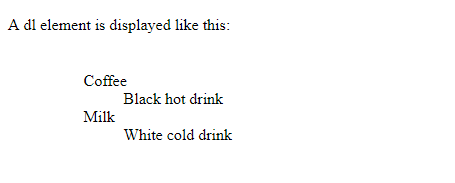
<p>A dl element is displayed like this:</p>

<dl>
<dt>Coffee</dt>
<dd>Black hot drink</dd>
<dt>Milk</dt>
<dd>White cold drink</dd>
</dl>

</body>
</html>

The <dl> tag defines a description list.

The <dl> tag is used in conjunction with <dt> (defines terms/names) and <dd> (describes each term/name).

Refer: 

https://www.w3schools.com/tags/tag_dl.asp

dlExample 1


Introduction To HTML Tag

<html>
<head>
<title>My First Webpage</title>
</head>
<body>
<h1 align=”center”>My First Webpage</h1>
<p>Welcome to my first web page. I am writing this page using a text editor and plain old html.</p>
<p>By learning html, I’ll be able to create web pages like a pro….<br>which I am of course.</p>
</body>
</html>

Explain about the HTML code above.

  • The <html> element is the root element of an HTML page
  • The <head> element contains meta information about the document
  • The <title> element specifies a title for the document
  • The <body> element contains the visible page content
  • The <h1> element defines a large heading
  • The <p> element defines a paragraph
  • Use align="center" for text alignment (center, right, left)
  • The<br> tag inserts a single line break.

Refer: 

https://www.w3schools.com/html/html_intro.asp

https://www.w3schools.com/html/html_styles.asp

https://www.w3schools.com/tags/tag_br.asp

Explain about the two types of HTML Tags.

In HTML, the tags begin with (<) and end with (>). HTML tags can be of two types. They are:

1. Paired Tags
2. Unpaired Tags

Paired Tags:

A tag is said to be a paired tag if the text is placed between a tag and its companion tag. In paired tags, the first tag is referred to as Opening Tag and the second tag is referred to as Closing Tag.

Unpaired Tags:

An unpaired tag does not have a companion tag or closing tag. Unpaired tags are also known as Singular or Stand-Alone Tags.

Refer:

https://www.plus2net.com/html_tutorial/html_tagtypes.php

Give some examples of HTML tags on both types of HTML tags.

Paired Tags:

<i></i>
<strong></strong>

Unpaired Tags:

<br>
<hr>

Refer:

https://www.plus2net.com/html_tutorial/html_tagtypes.php

Know more about HTML…

<html>
<head>
<title>My first Webpage</title>
</head>
<body>
This is my first homepage.<b>This text is bold</bold>
</body>
</html>

Explain about the HTML code above.

The HTML document itself begins with <html> and ends with </html>.

The visible part of the HTML document is between <body> and </body>.

HTML headings are defined with the <h1> to <h6> tags.

<h1> defines the most important heading.

HTML uses elements like <b> and <i> for formatting output, like bold or italic text.

Refer:

https://www.w3schools.com/html/html_basic.asp

https://www.w3schools.com/html/html_formatting.asp

Why the use of HTM or HTML Extension?

The webpage’s standard file extensions are .HTM and .HTML. Both these extensions are related to HTML files, the basic language used for writing webpages. These extensions are usually used for webpages with static content.

The only difference is that .HTM is used as an alternate to .HTML for some operating systems and servers that do not accept four-letter extensions. In actual fact, .HTM was usually used back in the old days, like during the time when DOS was popular. In the present time, computers can now easily support big files and wide length of file names, therefore, having a four-letter extension is not a problem anymore.

Refer:

https://www.quora.com/What-is-the-difference-between-a-html-and-a-htm-page

http://www.differencebetween.net/technology/internet/difference-between-htm-and-html/#ixzz5hRcLyAYT

How to view HTML source?

To see the HTML source code of a web document, it depends on the browser we’re using. Follow the appropriate instructions below:

  • Firefox and Mozilla: Right-click the page and select View Page Source. To see the source of an individual frame, right-click or Ctrl-click the frame and select This Frame, and then View Frame Source.
  • Internet Explorer: From the View menu (IE 9) or the Page menu (IE 8), select Source.If the menu bar is hidden, press Alt to make it visible.To see the source for frames, right-click within the frame, and from the pop-up menu select View Source or View Frame Source.
  • Chrome: From the options wrench icon on the upper right, select Tools and then View Source, or right-click and select View page source. To see the source for frames, right-click within the frame, and from the pop-up menu, select Inspect Element.
  • Safari: In Safari 6, from the Preferences menu, click Advanced. In the window that opens, check Show Develop in Menu Bar. From the Develop menu that now appears, choose Show Page Source. Alternatively, you can right-click or Ctrl-click and select this same option.In earlier versions of Safari, from the View menu, select View Source. To see the source for frames, right-click or Ctrl-click within the frame, and from the pop-up menu, select View Frame Source.
  • Opera: Right-click and select Source from the menu. To see the source for frames, right-click within the frame, and from the pop-up menu, select Inspect Element.

Refer:

https://kb.iu.edu/d/agao

First(s) of Web Technology

The First Website

The beginning of the Web as a publicly available service on the Internet arrived on August 6, 1991, when Berners-Lee published the first-ever website. Fittingly, the site was about the World Wide Web project, describing the Web and how to use it. Hosted at CERN on Berners-Lee’s NeXT computer, the site’s URL was http://info.cern.ch.

Berners-Lee didn’t try to cash in on his invention and rejected CERN’s call to patent his Web technology. He wanted the Web to be open and free so it could expand and evolve as rapidly as possible. As he later said, “Had the technology been proprietary, and in my total control, it would probably not have taken off. You can’t propose that something be a universal space and at the same time keep control of it.”

From: https://www.history.com/news/the-worlds-first-web-site

The First Web Browser

Tim Berners-Lee, who invented the World Wide Web together with Robert Cailliau, built the first working prototype in late 1990 and early 1991. That first prototype consisted of a web browser for the NeXTStep operating system. This first web browser, which was named “World Wide Web,” had a graphical user interface and would be recognizable to most people today as a web browser. However, World Wide Web did not support graphics embedded in pages when it was first released. Know more here.

From: https://www.boutell.com/newfaq/history/fbrowser.html

The First Programming Language

The first high-level programming language was Plankalkül, created by Konrad Zuse between 1942 and 1945. The first high-level language to have an associated compiler was created by Corrado Böhm in 1951, for his PhD thesis. The first commercially available language was FORTRAN (FORmula TRANslation); developed in 1956 (first manual appeared in 1956, but first developed in 1954) by a team led by John Backus at IBM.

When FORTRAN was first introduced it was treated with suspicion because of the belief that programs compiled from high-level language would be less efficient than those written directly in machine code. FORTRAN became popular because it provided a means of porting existing code to new computers, in a hardware market that was rapidly evolving; the language eventually became known for its efficiency.

From: https://en.wikipedia.org/wiki/History_of_programming_languages

The First Personal Computer

In 1975, Ed Roberts coined the term “personal computer” when he introduced the Altair8800. Although the first personal computer is considered by many to be the KENBAK-1, which was first introduced for $750 in 1971. The computer relied on a series of switches for inputting data and output data by turning on and off a series of lights.

Altair 8800 Computer

From: https://www.computerhope.com/issues/ch000984.htm

The First Laptop or Portable Computer
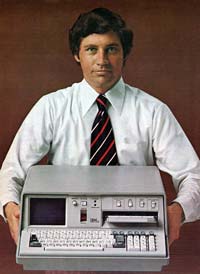
IBM 5100The IBM 5100 is the first portable computer, which was released in September 1975. The computer weighed 55 pounds and had a five inch CRT display, tape drive, 1.9 MHz PALM processor, and 64 KB of RAM. In the picture is an ad of the IBM 5100 taken from a November 1975 issue of Scientific American.

The first truly portable computer or laptop is considered to be the Osborne I, which was released in April 1981 and developed by Adam Osborne. The Osborne I weighed 24.5 pounds, had a 5-inch display, 64 KB of memory, two 5 1/4″ floppy drives, ran the CP/M 2.2 operating system, included a modem, and cost $1,795.

The IBM PCD (PC Division) later released the IBM portable in 1984, its first portable computer that weighed 30 pounds. Later in 1986, IBM PCD announced its first laptopcomputer, the PC Convertible, weighing 12 pounds. Finally, in 1994, IBM introduced the IBM ThinkPad 775CD, the first notebook with an integrated CD-ROM.

From: https://www.computerhope.com/issues/ch000984.htm#laptop

The First Apple Computer

The Apple I (Apple 1) was the first Apple computer that originally sold for $666.66. The computer kit was developed by Steve Wozniak in 1976 and contained a 6502 8-bit processor and 4 kb of memory, which was expandable to 8 or 48 kb using expansion cards. Although the Apple I had a fully assembled circuit board the kit still required a power supplydisplaykeyboard, and case to be operational. Below is a picture of an Apple I from an advertisement by Apple.
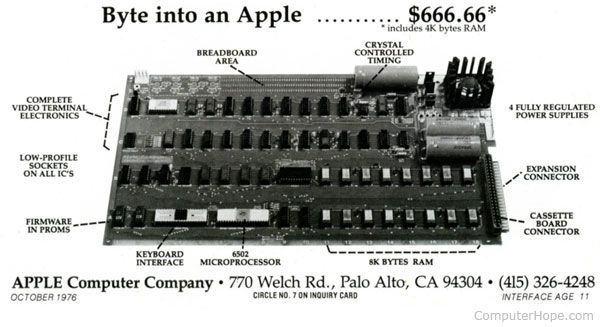
Apple I computer

From: https://www.computerhope.com/issues/ch000984.htm

The First Female Computer Programmer
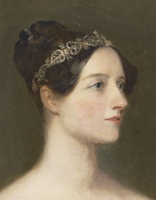
Women in IT history

London-born Ada Lovelace (1815–1852) had a passion and gift for mathematics from a young age. She is credited with being the world’s first computer programmer, as she drafted plans for how a machine called the Analytical Engine could perform computations. The machine, invented by her friend, mathematician and inventor Charles Babbage, is considered to be the first general computer. Lovelace detailed applications for the Analytical Engine that relate to how computers are used today.

Lovelace is remembered annually on Ada Lovelace Day, held on the second Tuesday of October. The international day of recognition celebrates women in science, technology, engineering, and math (STEM).

From: https://www.purdueglobal.edu/blog/information-technology/history-women-information-technology-6-female-computer-science-pioneers/

The First Female Programmer Pioneer
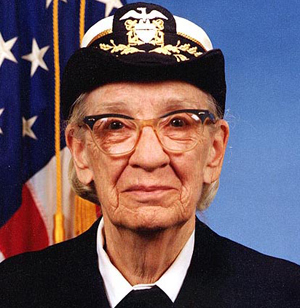
Grace Hopper

Called the Queen of Software by some and Grandma COBOL by others, Navy Rear Admiral Grace Hopper helped invent some of the early English-language programming languages. She is most famously associated with the Common Business-Oriented Language (COBOL), which was based on the FLOW-MATIC language that she designed back in 1958.

Before the invention of such language-based programming, computers spoke exclusively in binary code, which was illegible to human beings. Hopper was convinced that if programming were produced in a form that anyone could read, then there would be more programmers. It turns out that she was right.

While COBOL isn’t exactly the cutting edge of programming technology today, it still has a faithful following. In fact, in a recent Computerworld survey, 53 percent of the organizations that responded said that they were using COBOL to build new business applications.